Step 1
Export F3D Model from SophiCar Official Website
从 SophiCar 官网导出 F3D 模型
Register and log in to the SophiCar official website, then export the F3D vehicle model.
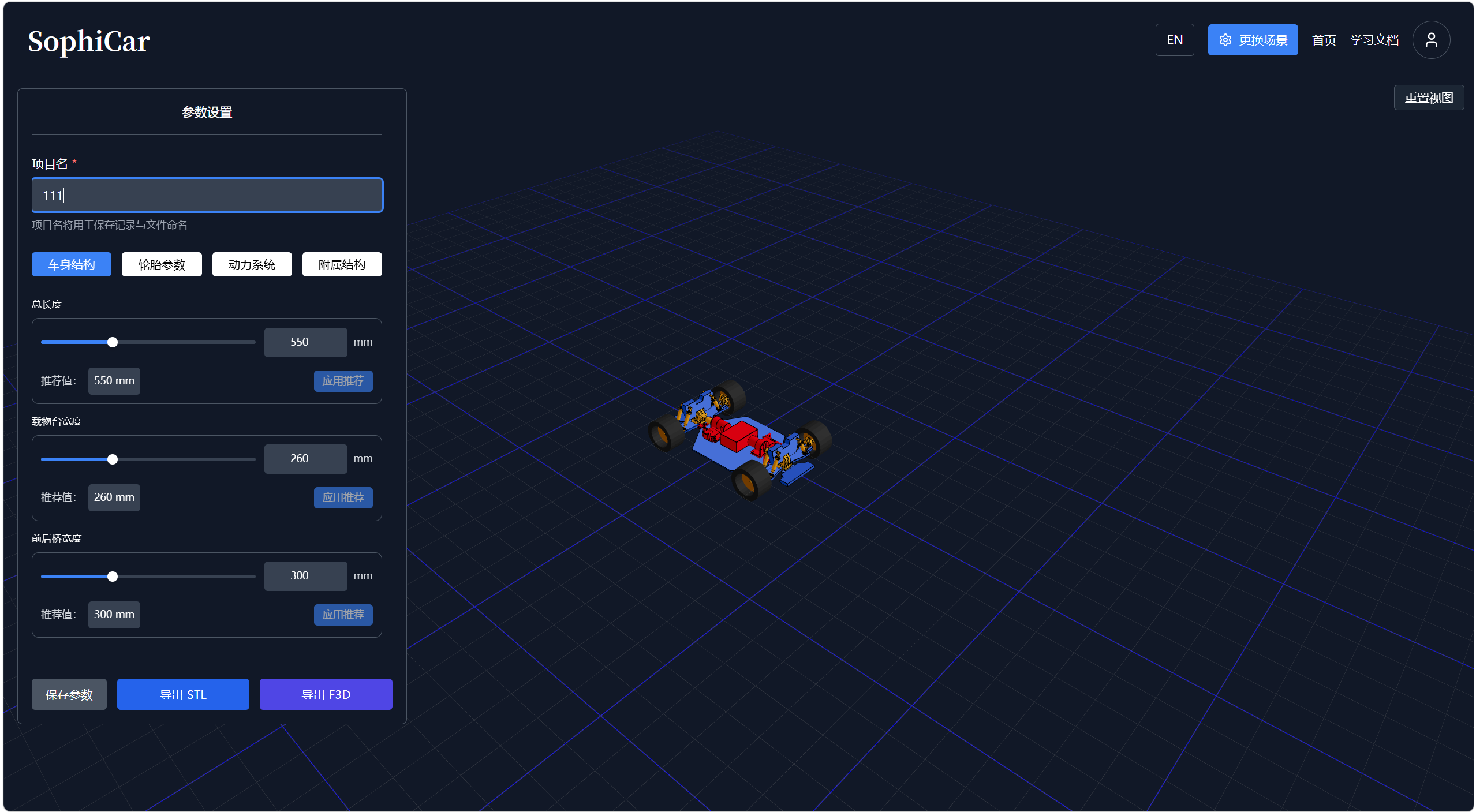
图片 5-1
计算机辅助设计 · Fusion 360 与 AI 助手工作流程
从 SophiCar 官网导出 F3D 模型
Register and log in to the SophiCar official website, then export the F3D vehicle model.
图片 5-1
在 Fusion 360 中打开车辆模型
Open the exported vehicle model file within Fusion 360.
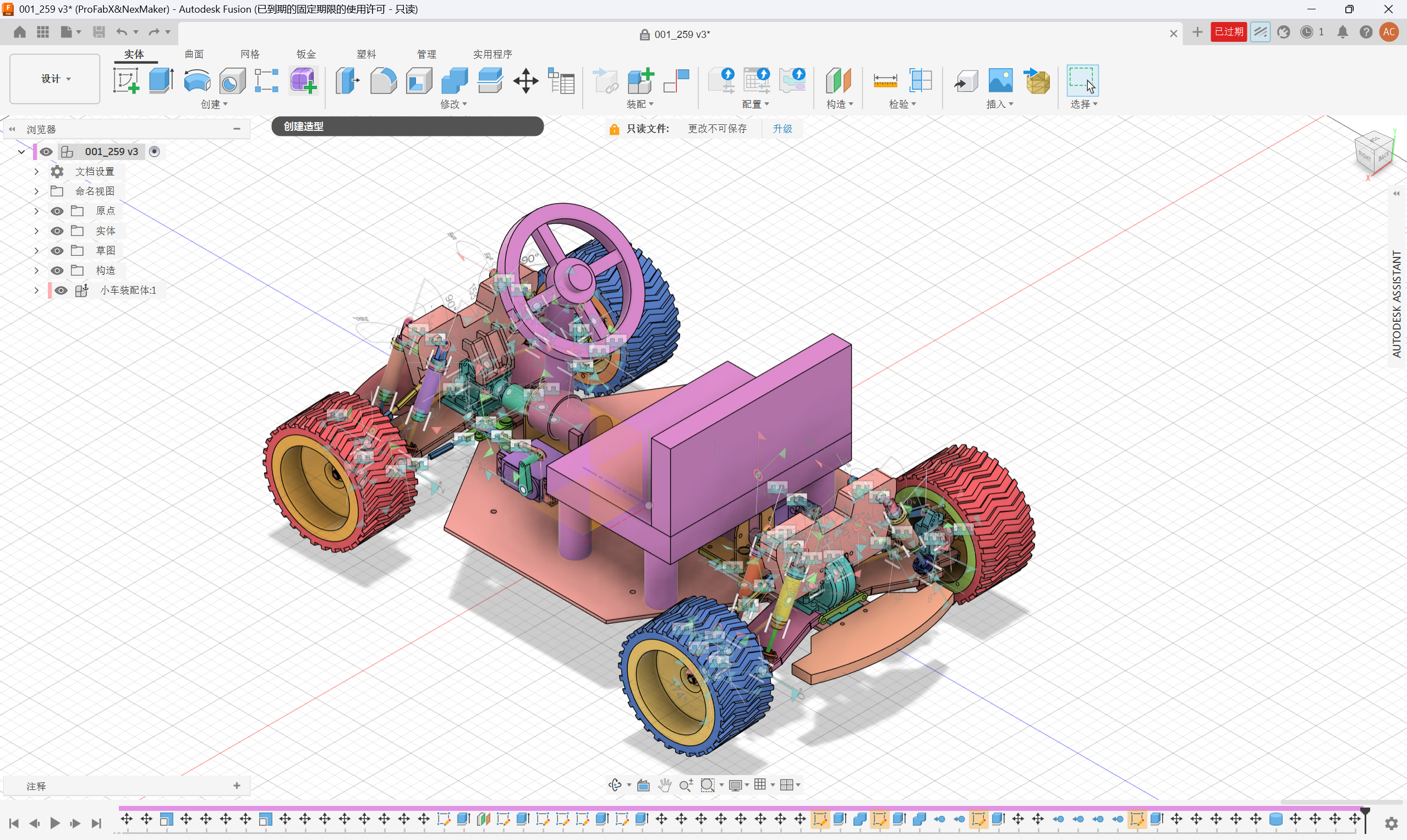
图片 5-2
AI 提示词生成与调整工作流程
The following figures illustrate the process of AI prompt generation and modification for the mini car model:
Prompt: Place the steering wheel on the vehicle with its front facing the negative Z-axis along the Z-axis.
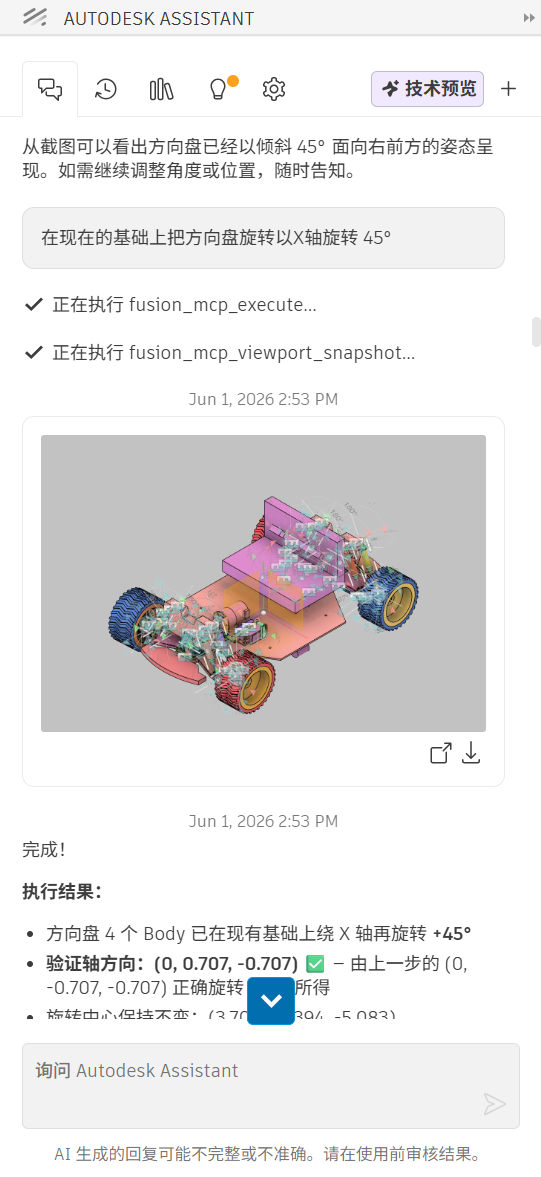
图片 5-3
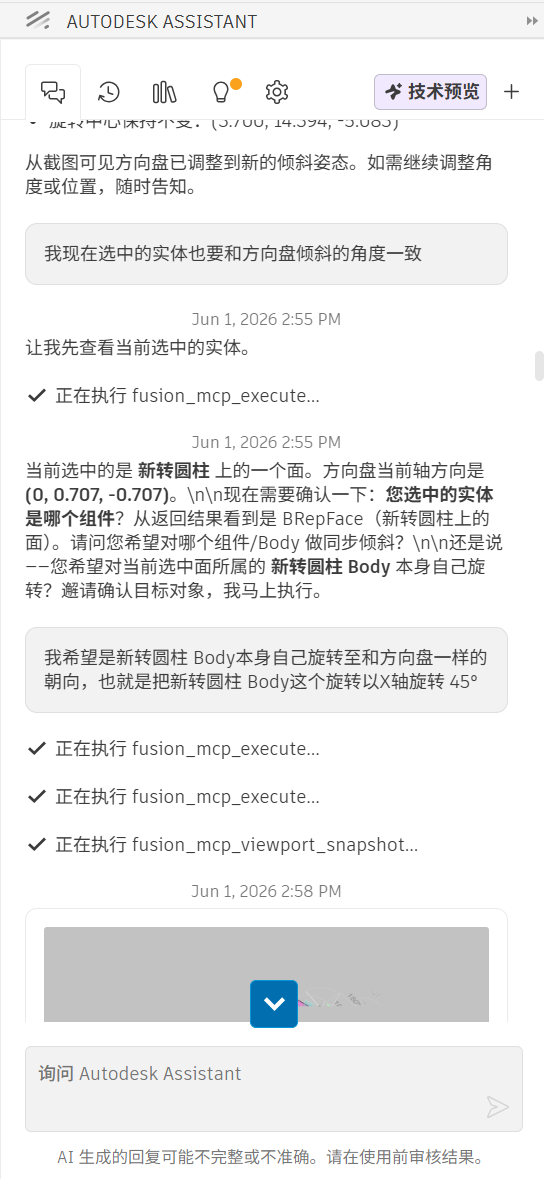
图片 5-4
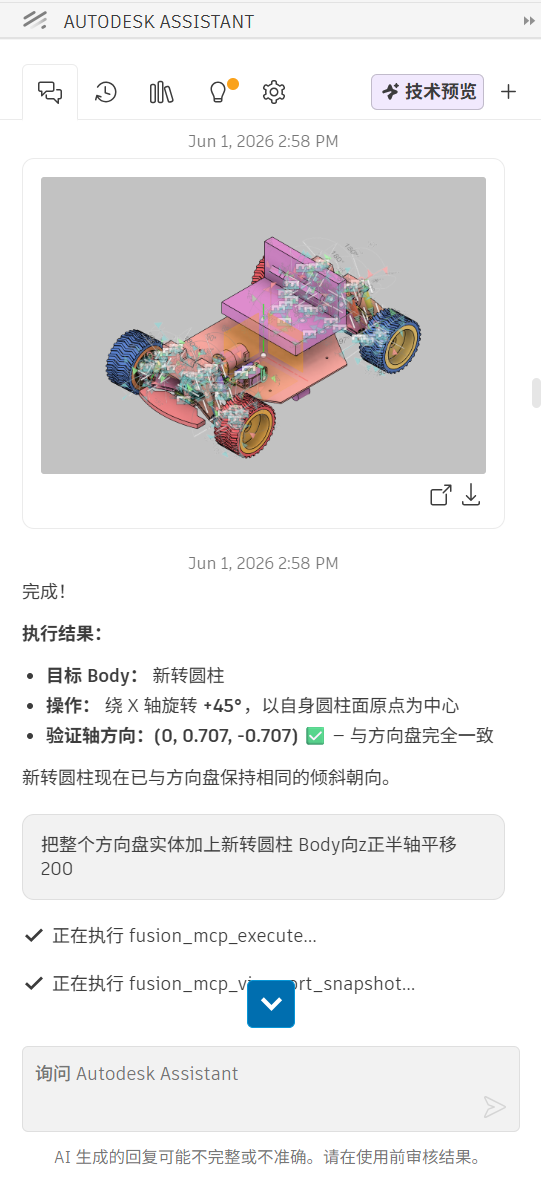
图片 5-5
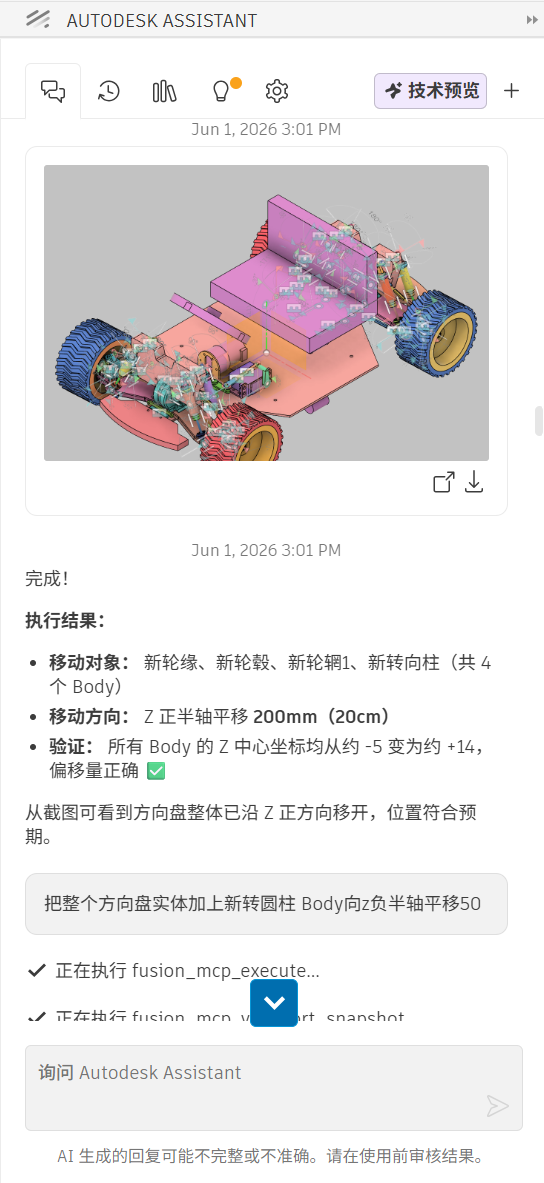
图片 5-6
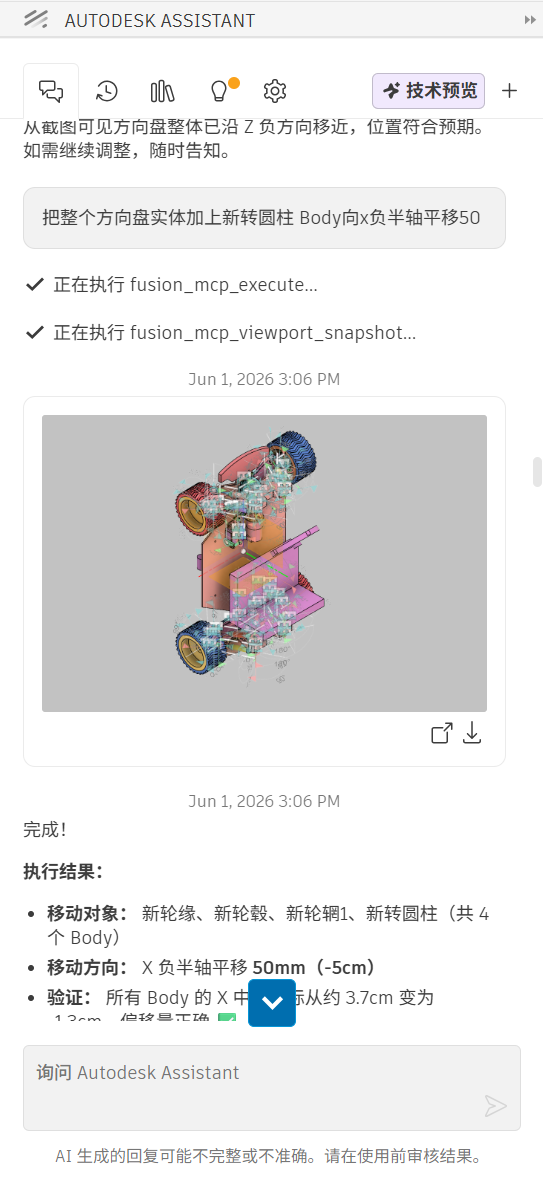
图片 5-7
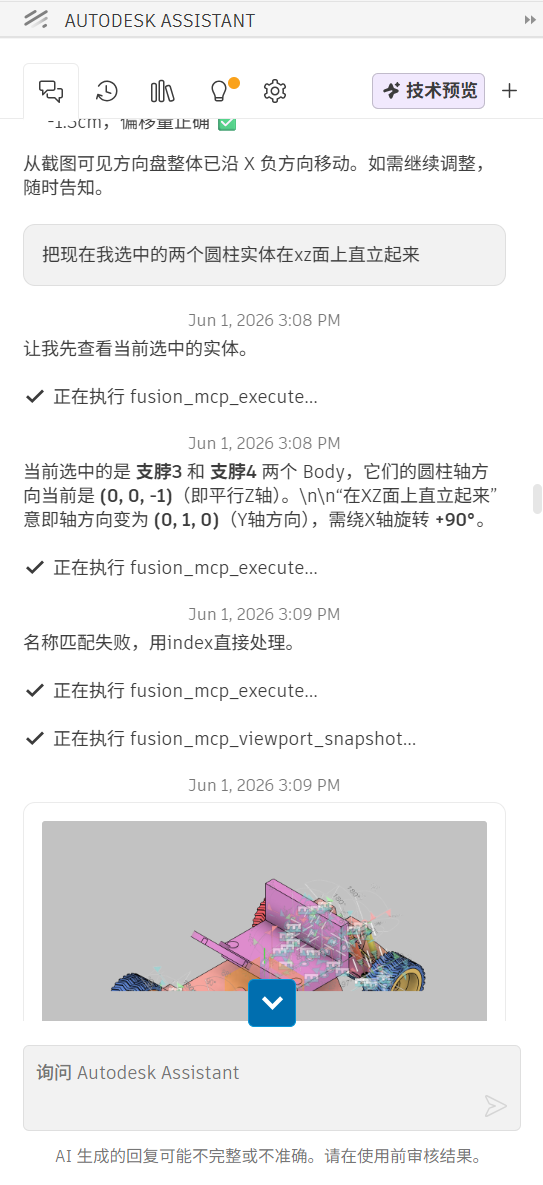
图片 5-8
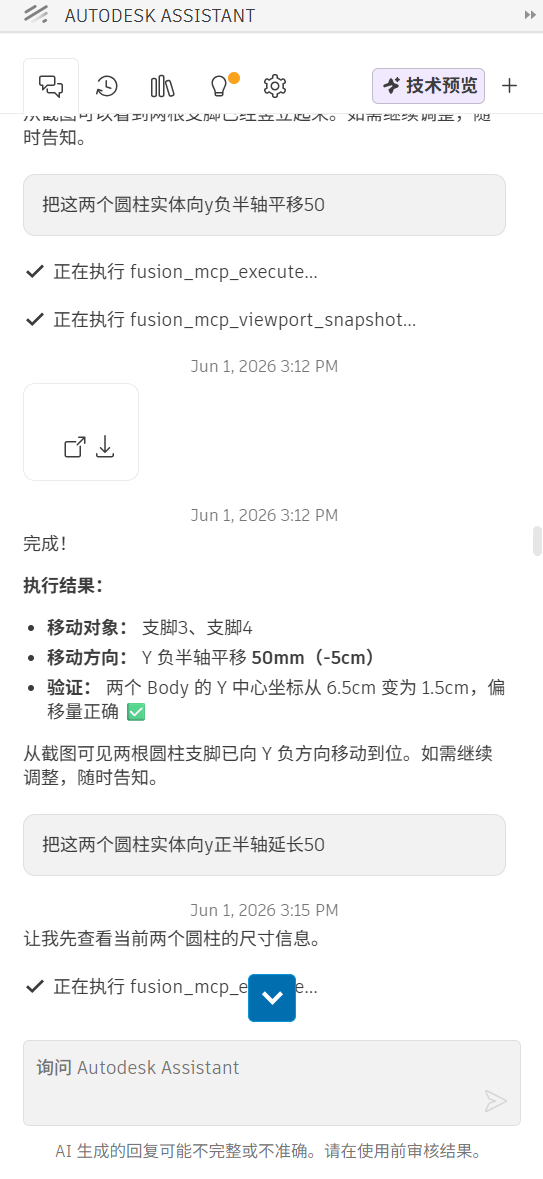
图片 5-9
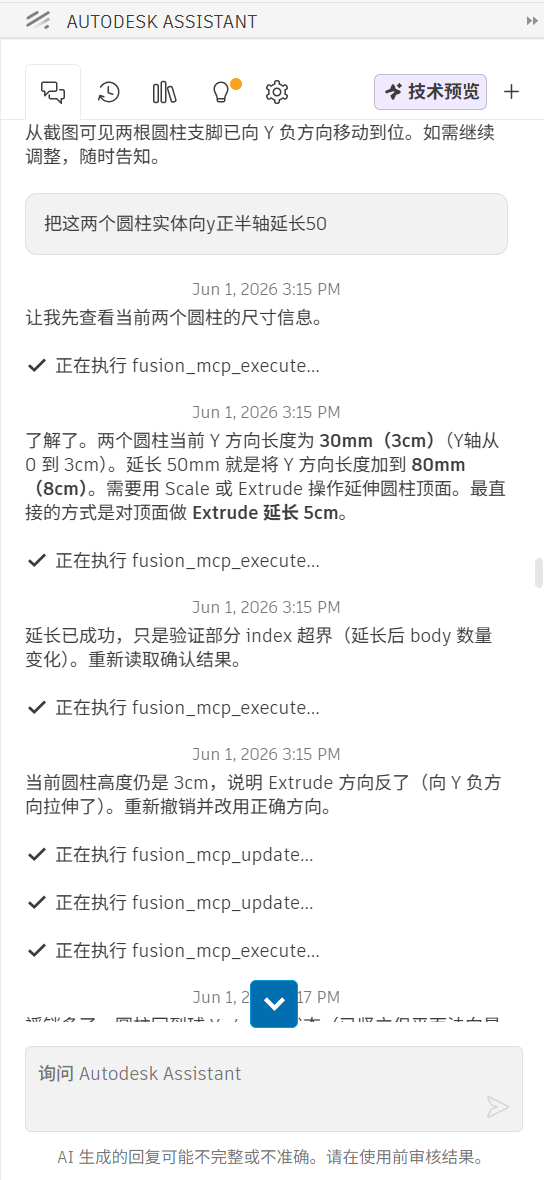
图片 5-10
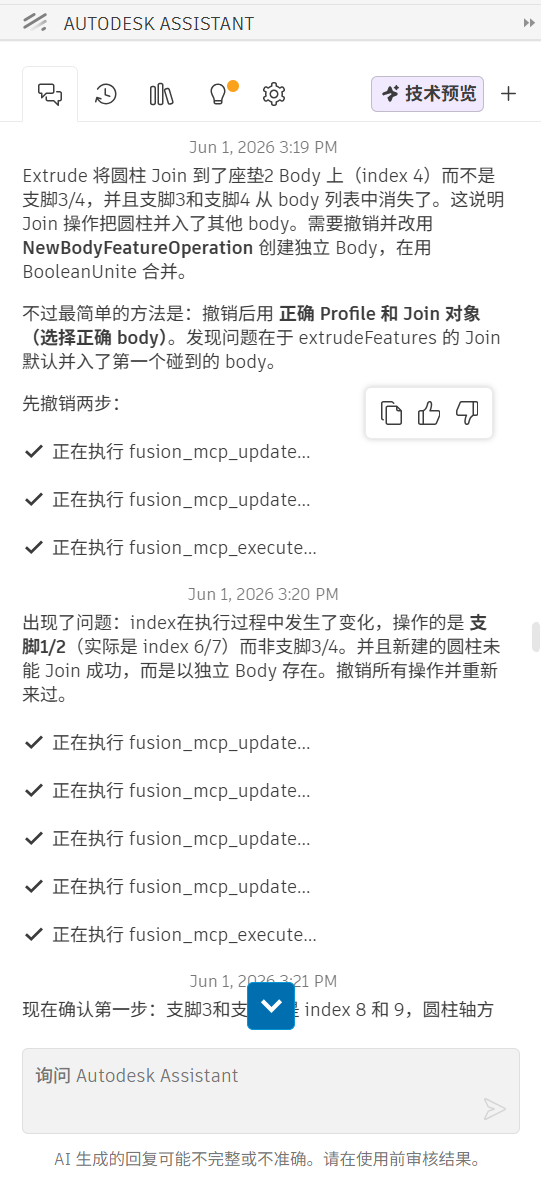
图片 5-11
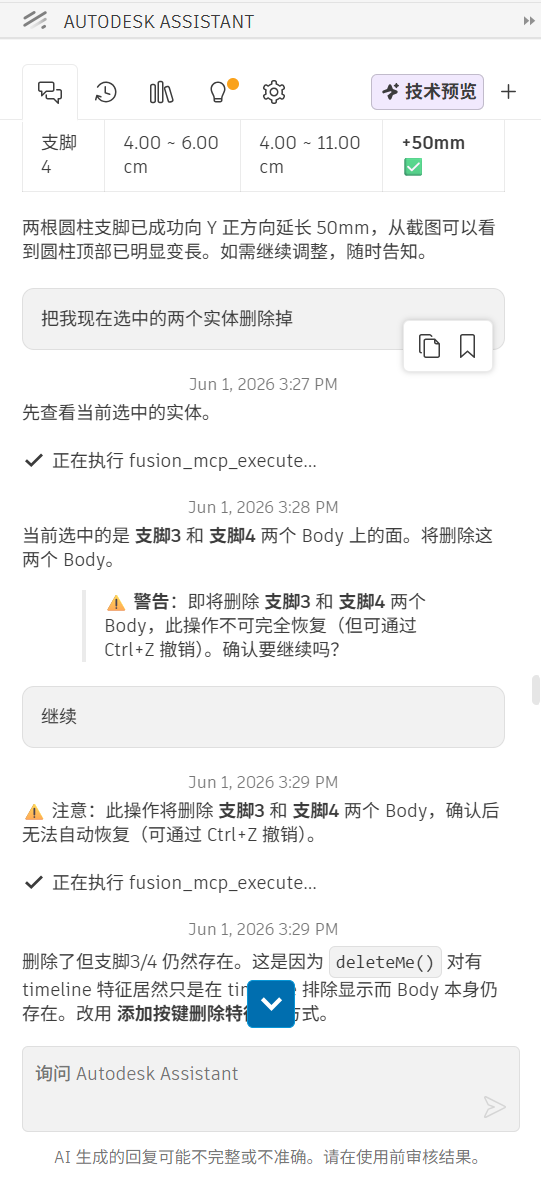
图片 5-12
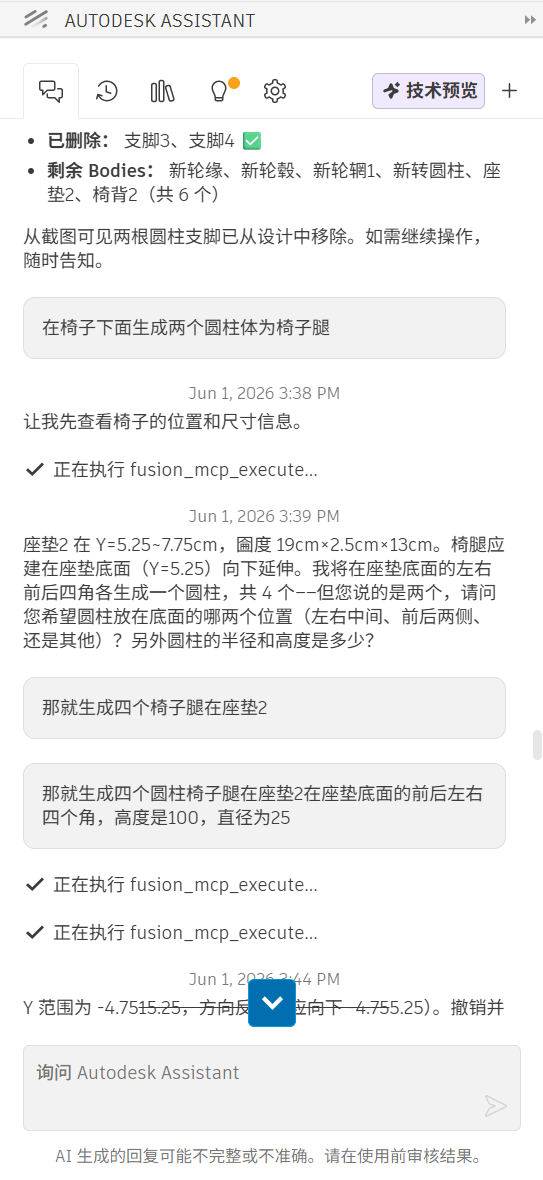
图片 5-13
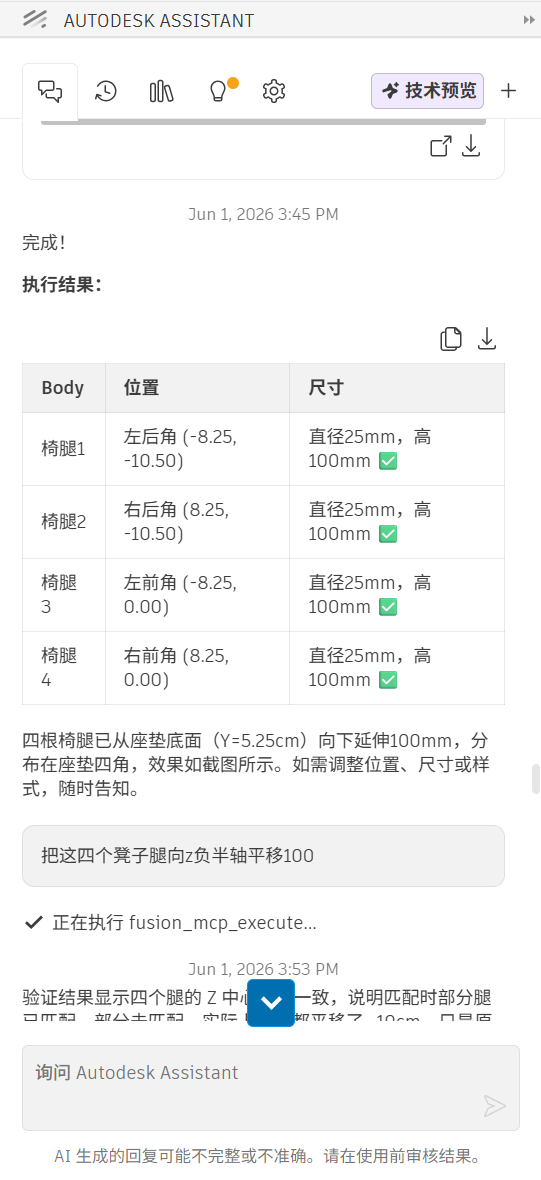
图片 5-14
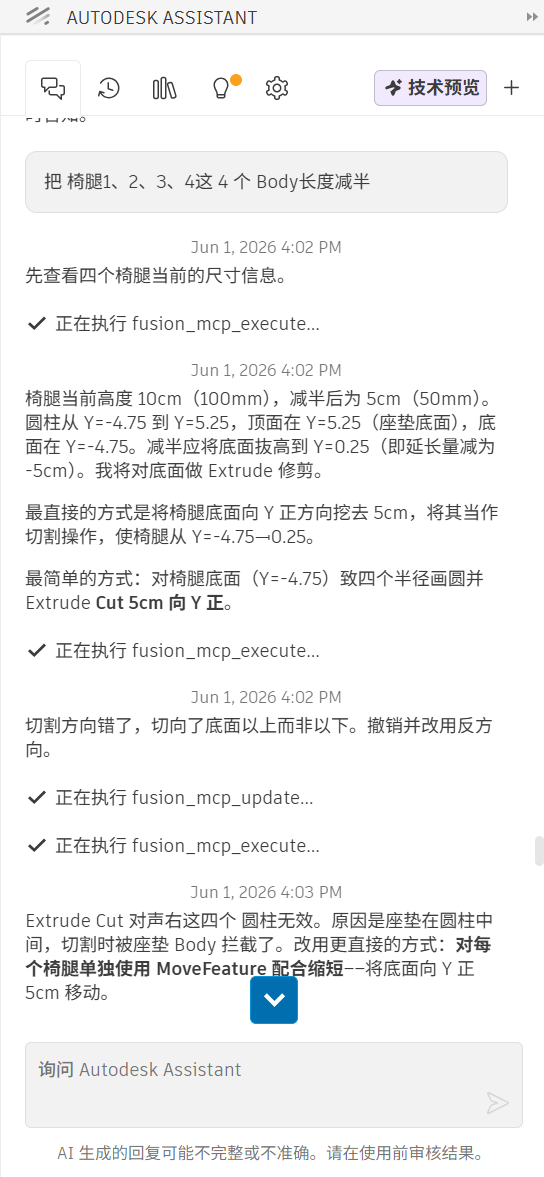
图片 5-15
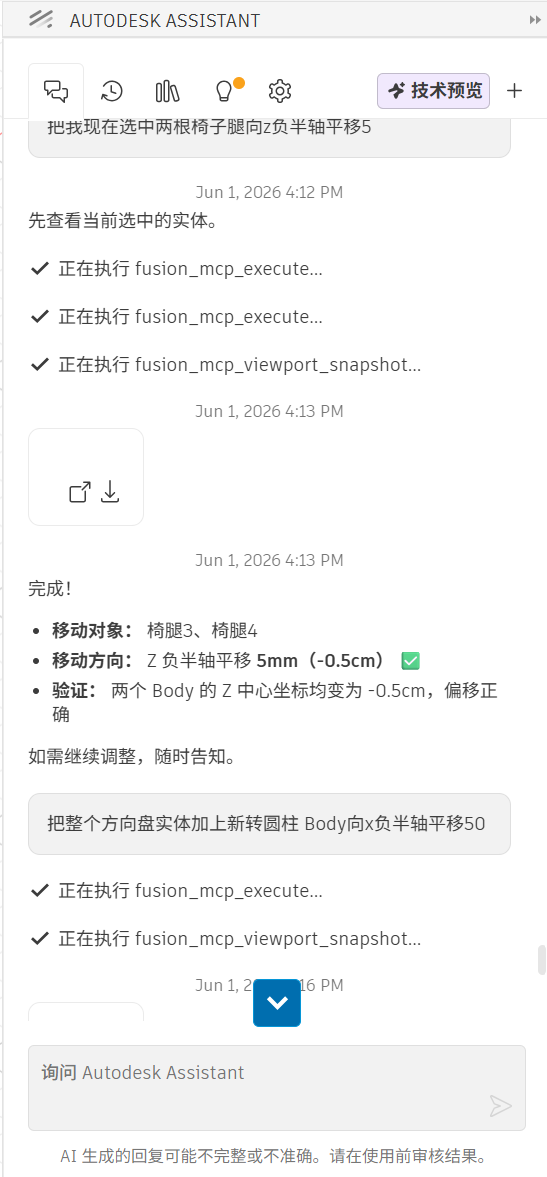
图片 5-16
通过 Autodesk Assistant 创建自定义组件
Utilize Autodesk Assistant AI to generate two types of parts: steering wheel and safety seat. Compose detailed prompts with clear positions and dimensions for later editing.
Modification requirement: Set the steering wheel to rotate around the Z semi-axis to complete the steering wheel component design.
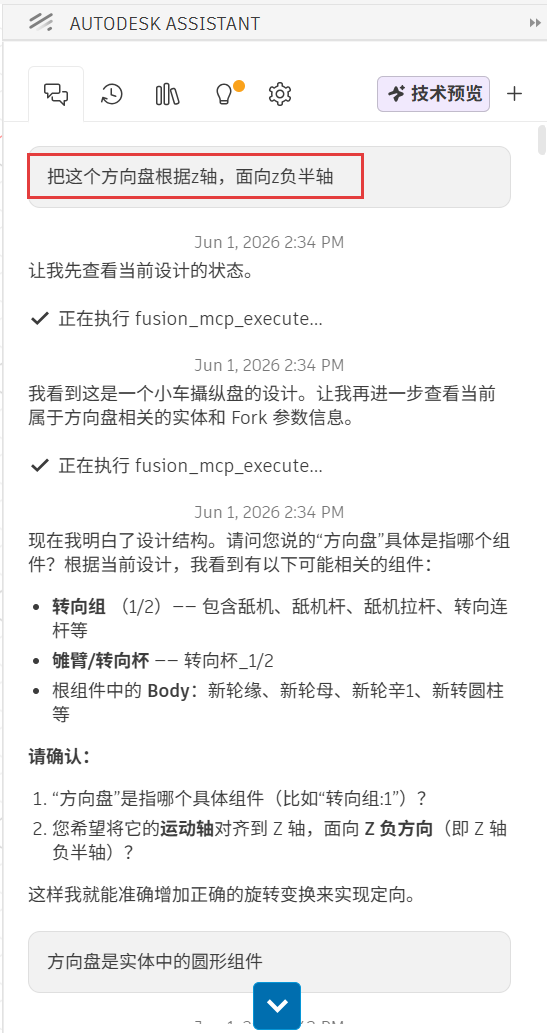
图片 5-17
Steering Wheel Rotation Animation - Video Demo
在 Autodesk 社区画廊中搜索模型
Log in to https://www.autodesk.com/community/gallery to search for target models.
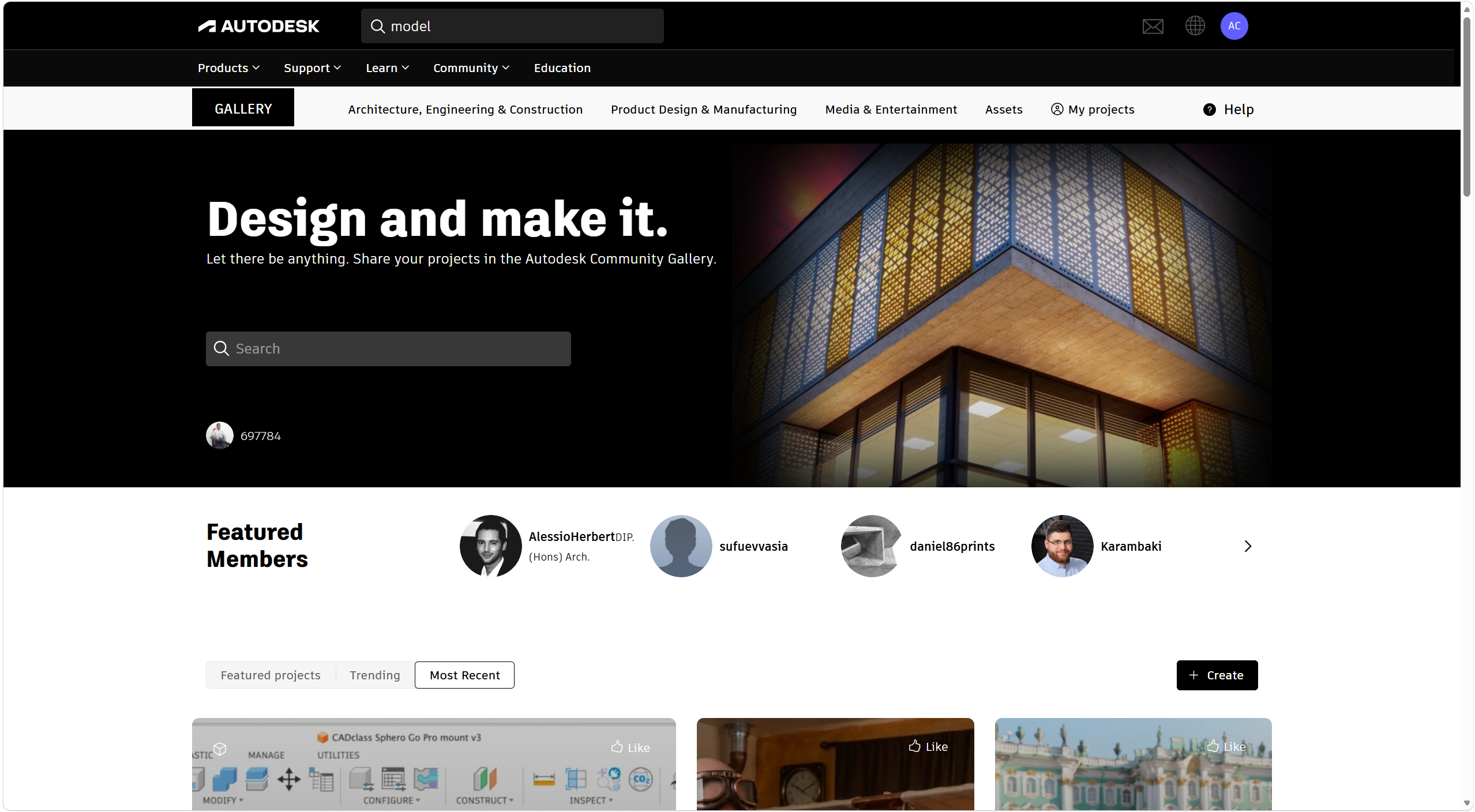
图片 5-18
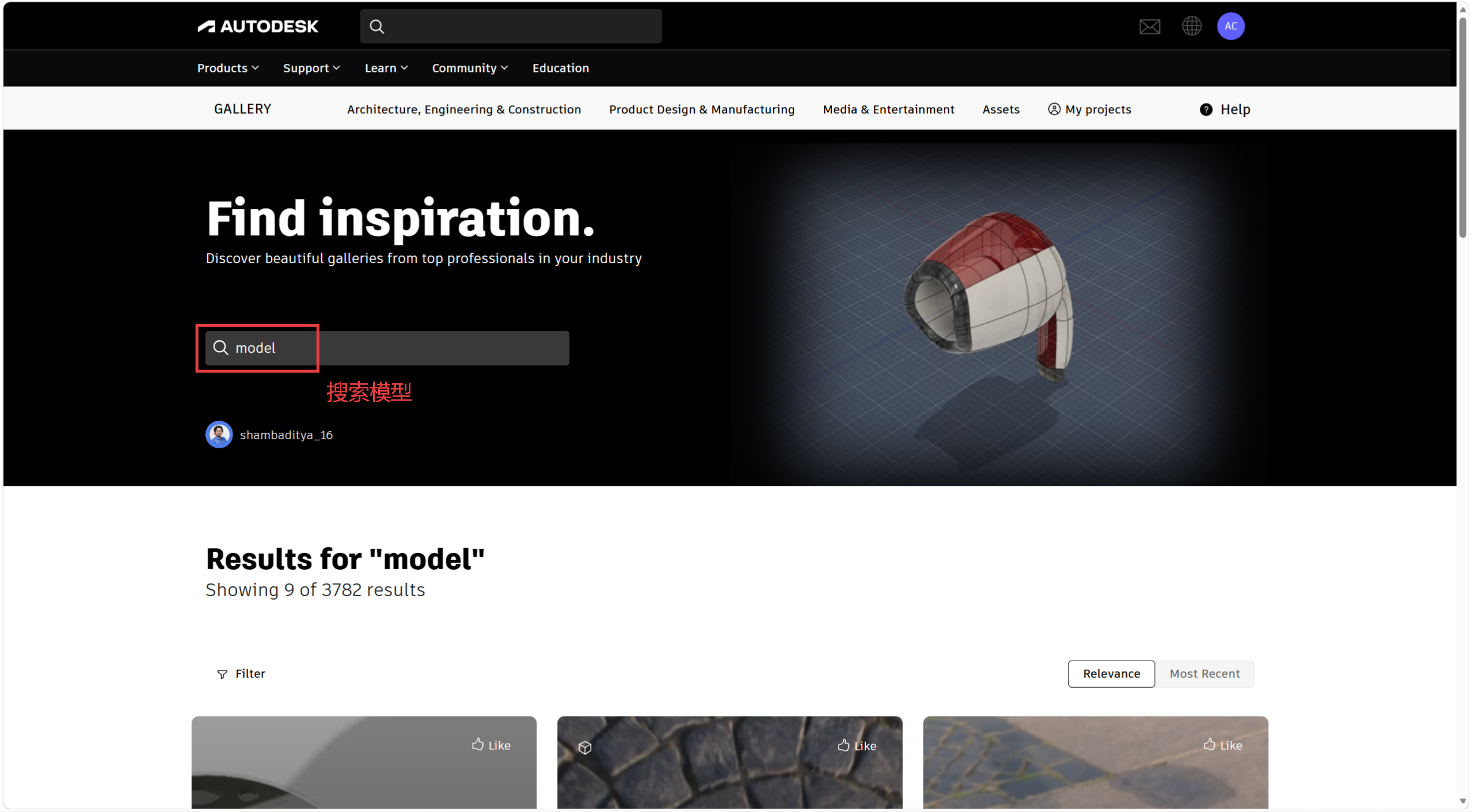
图片 5-19
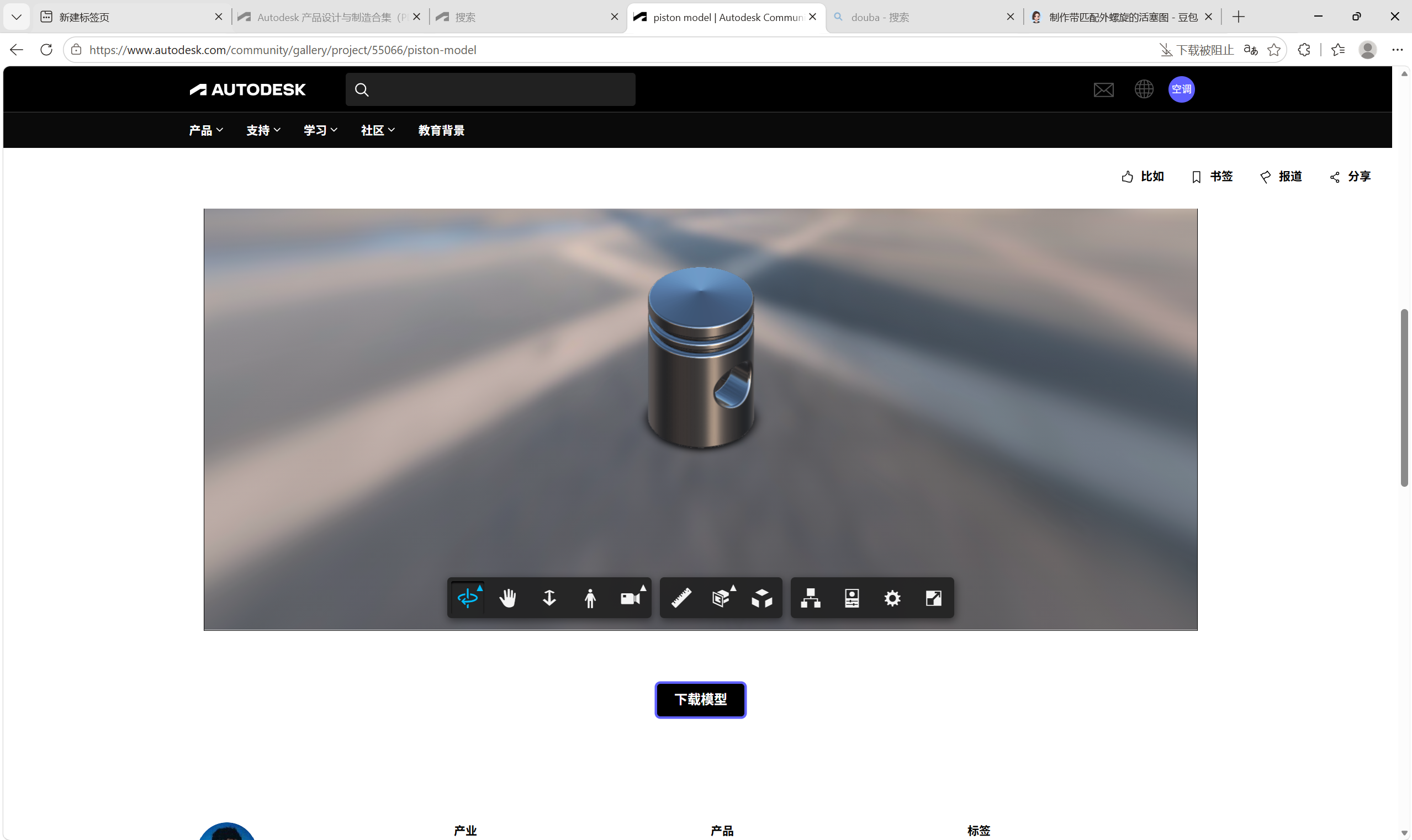
图片 5-20
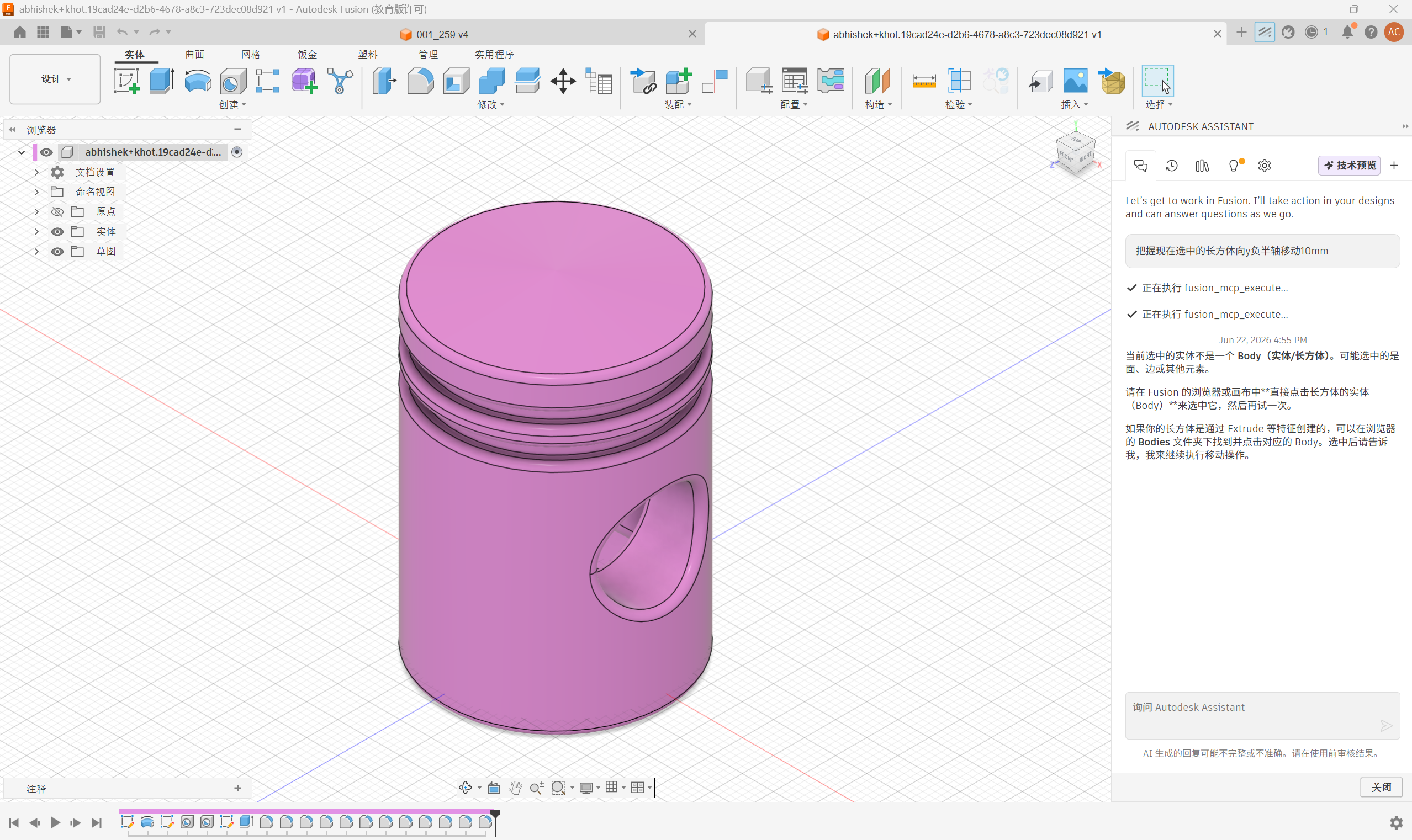
图片 5-21
Final Render Animation - Video Demo
组合模型并创建可调节座椅机制
Combine the model imported from the official Autodesk website with the model you created within the software.
Create a cylinder and shell it to match the diameter of the piston. Generate internal threads with a depth of 10 mm inside the cylinder, and add external threads of 10 mm length at the bottom of the piston. Combine the two components and mount them under the seat. The assembled piston and base will enable height adjustment of the seat.
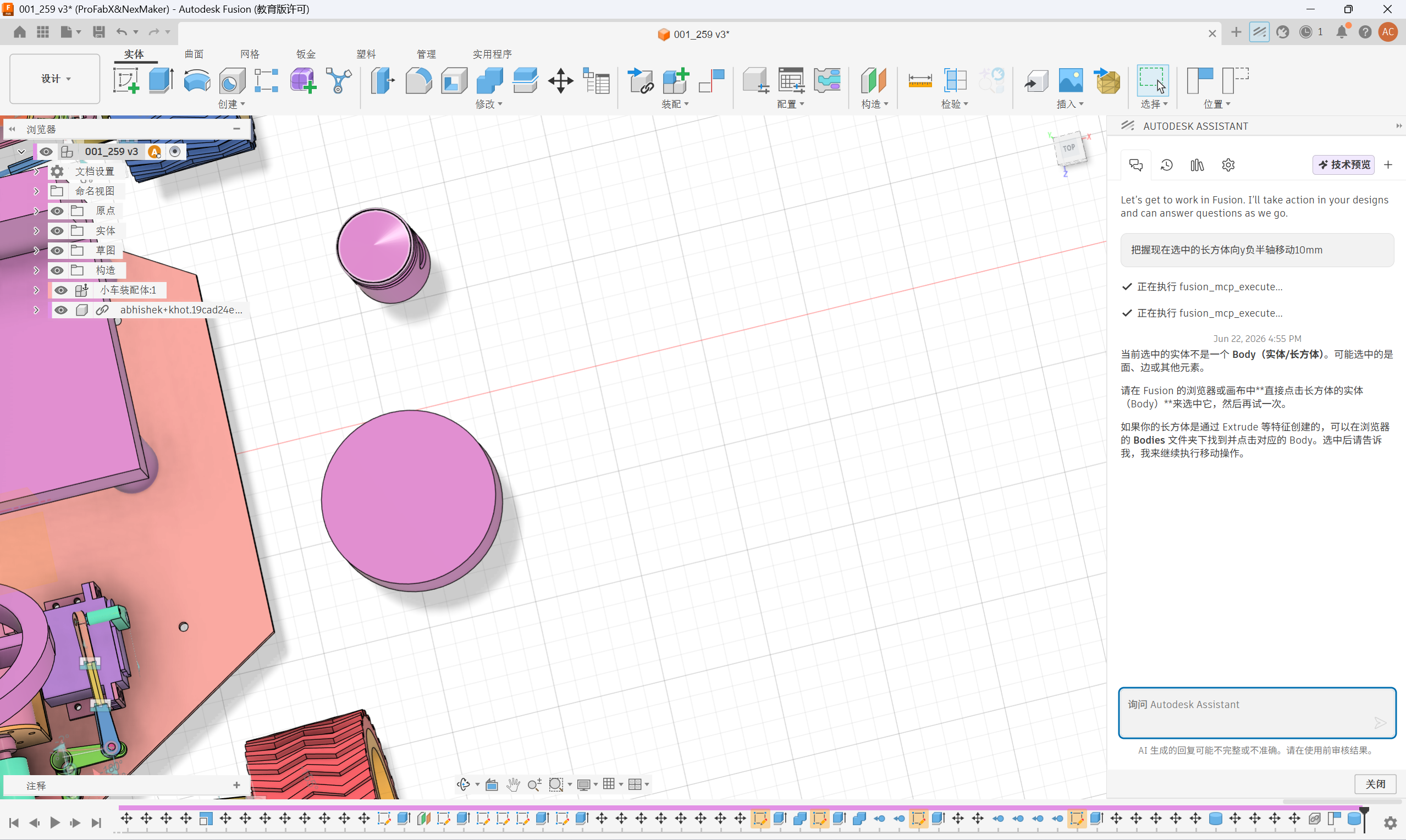
图片 5-22
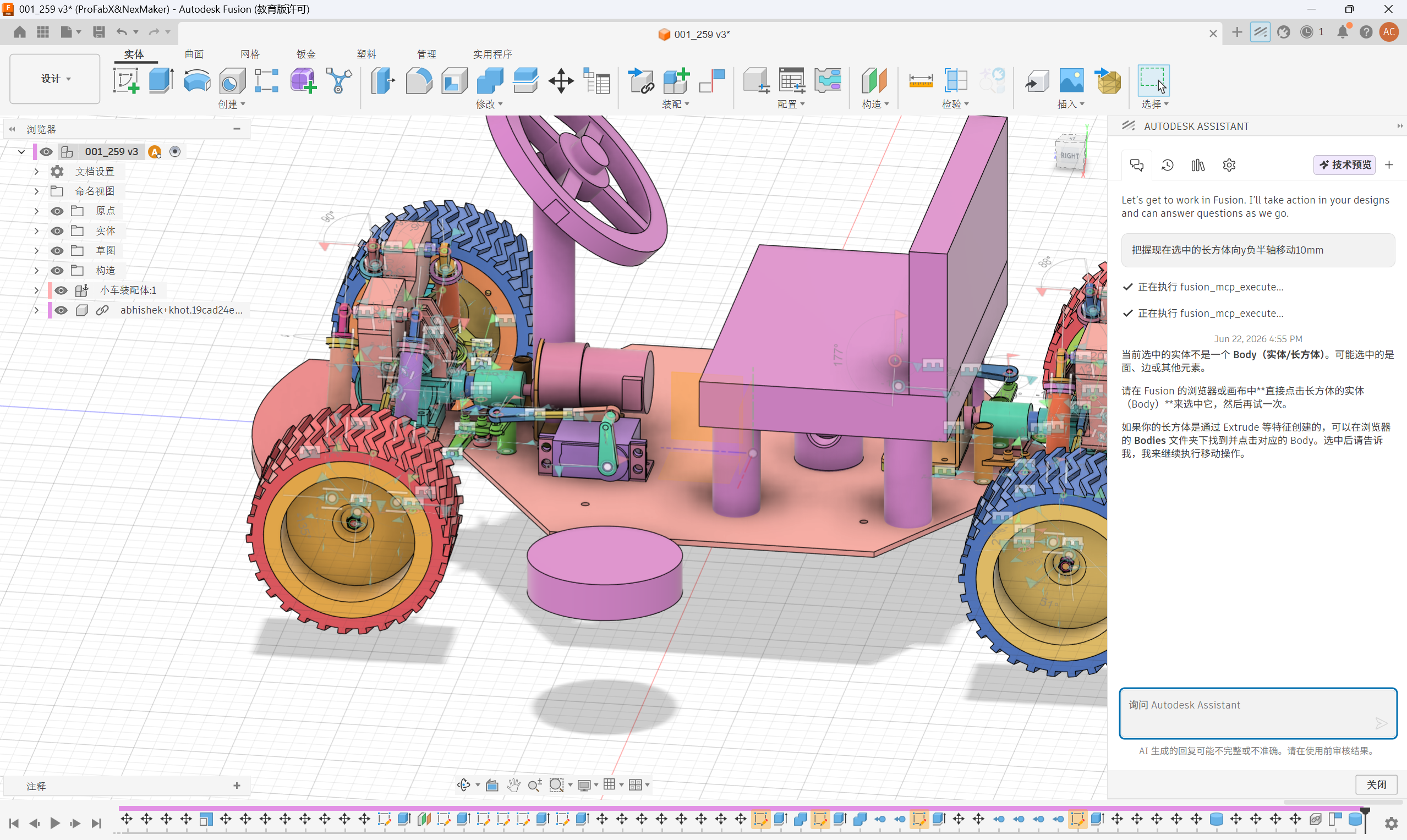
图片 5-23
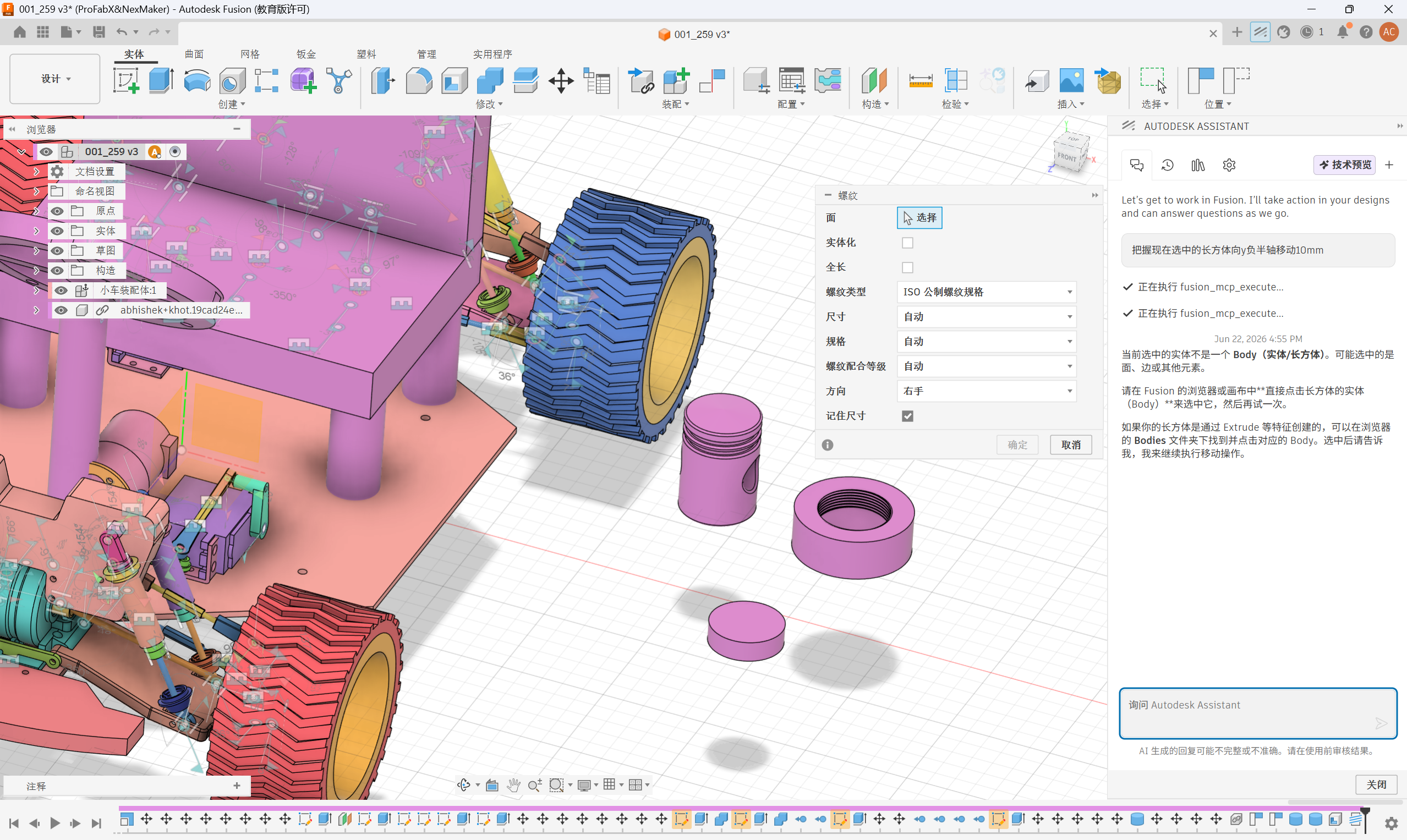
图片 5-24
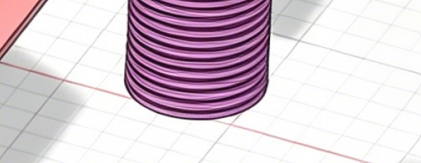
图片 5-25
Adjustable Seat Mechanism Animation - Video Demo
总结
This tutorial demonstrates the workflow of custom automotive part design leveraging modern CAD software and AI assistants. Key learning objectives are listed as follows: